Choose your setup
For people using obsync.
Every setup has the same three parts:
- The server: one container you run on a computer or a 64-bit Raspberry Pi that stays on.
- HTTPS in front of it, with a certificate every device trusts.
- A way for each device to reach it.
Only the last part differs between setups. Pick the row that matches how you want to sync, then follow its guide.
Not sure? Start with Same network: Same network, step by step shows every screen, phone included. The Quickstart takes you from nothing to two devices in sync, with a screenshot of each step in the plugin.
Start with your homelab
Yes: obsync can live on a 64-bit Raspberry Pi, mini PC, or home server you already own. You do not need Cloudflare, a public website, or an account with a sync provider. Your notes stay as ordinary files in your Obsidian vault; your server stores their encrypted copies and history.
- Get it working at home. Follow Same network, step by step. It includes the phone screens, certificate trust, plugin installation and pairing. Docker Compose runs the server and its HTTPS front end together.
- Check both directions. Make a disposable note on the computer, edit it on the phone, and confirm that both show the same text before adding your real notes. Keep a separate backup of those notes.
- Add access away from home if you need it. Connect your devices to your own VPN, or use an HTTPS reverse proxy or tunnel you choose. Keep the same server and vault: changing how you reach them does not require changing your encryption keys. The network checklist explains the route, name, certificate and firewall each device needs.
Already run a Kubernetes homelab? Use the Kubernetes guide for storage, chart values, HTTPS and network policy. Docker and Kubernetes run the same server and use the same plugin. The choice of host is independent of the choice of VPN, proxy or tunnel.
What protects your notes
Encryption protects their contents. Notes, attachments and file names are encrypted on your device before upload. The server and a network intermediary do not receive the vault key. HTTPS also protects the connection and checks that the device reached the server named in its address; keep certificate verification enabled.
Your devices and backups protect your ability to keep working. Notes already on a device remain ordinary local files when the server is unavailable. A phone may deliberately keep only part of a large vault, so it is not automatically a complete backup. Keep an independent backup that the sync server cannot rewrite, and keep the recovery phrase and setup token somewhere safe. Try restoring a disposable note before relying on that backup.
Encryption cannot make a compromised device safe, stop a host from deleting or withholding its stored copies, or guarantee access during an outage. A TLS terminator can see access credentials and traffic metadata even though it cannot read note contents. For the exact boundaries, see Security and Recovery. No provider is required to hold your plaintext.
The setups
"Proven" names the evidence, and nothing else counts. There are two kinds:
- CI: a named job in
.github/workflows/runs that path on a throwaway machine, on pull requests or nightly. "CI runs the guide" means it runs the commands the page shows. CI proves the server path, not your devices. - Recorded on devices: real devices completed setup, pairing and sync both ways, and a validation run records it (how runs work).
| Setup | Syncs when | You need | Proven |
|---|---|---|---|
| Docker Compose, on the same network: step by step, or Compose with Caddy in brief | Your devices are on the same network as the server | A computer with Docker. One certificate trusted per device | CI runs the guide: compose-e2e.yml runs its commands on amd64 and arm64, and generic-paths.yml runs the same file under rootless Podman (podman). Recorded on devices: macOS and iPhone, 2026-09-14 and 2026-09-23, the second with a Mac laptop as the server |
| Side by side, no Wi-Fi: the same-network setup on one device's personal hotspot | Both devices are on that hotspot | As above, with the server's computer joined to the hotspot | Not yet recorded on a device |
| The Kubernetes route: Kubernetes, reached over the LAN or a private route back to it | The device can reach the cluster's network | A Kubernetes node, and on each device whatever carries it to that network | CI installs the chart and syncs through its TLS front: helm-e2e.yml on a throwaway cluster, and generic-paths.yml on k3s as it ships (k3d) and on an IPv6-only cluster (kind-ipv6). Recorded on devices: macOS and iPhone, 2026-09-20 and 2026-09-21, over a private route; the one used was the optional Cloudflare implementation |
| Your own VPN: WireGuard or Tailscale, for example, to either server above | The VPN is connected | A VPN on every device, plus what a roaming device needs | Not yet recorded on a device, and no CI job runs a VPN |
| A public name through your own proxy: an HTTPS reverse proxy you run on a domain you own. A tunnel with an access policy is one provider's version of it | The device has internet | A domain. For an access policy, its service token in the plugin | CI puts the server behind Caddy, nginx, Traefik and HAProxy as deploy/proxies/ configures them (proxy-matrix.yml), and runs the bare binary behind a distribution's nginx (generic-paths.yml, binary). Not yet recorded on a device |
In every recorded run so far, the devices were on the server's own network or its private route. Syncing from somewhere else entirely has not been recorded yet: Reaching it from outside your LAN lists what that needs.
Ways to reach your server
Whichever you choose, the plugin needs HTTPS with a certificate every device trusts; the server stays on plain HTTP behind that terminator. Changing the route later changes nothing about your vault or its keys.
- LAN only. The Compose path, reached only at home; no sync while you are away.
- WireGuard. Your own VPN home: fastest, entirely yours; a peer configuration on every device.
- Tailscale. A managed WireGuard mesh: least setup; a third party coordinates it, on its plan's terms.
- A reverse proxy with automatic TLS, such as Caddy on a public name: reachable from the internet, yours to patch.
- A tunnel, such as Cloudflare's: no inbound port; a provider on the path, on its terms.
Of these, only the LAN and one private route to a cluster have recorded device runs so far (the table above); the others are not yet proven on real devices.
Your devices
| Platform | Status |
|---|---|
| macOS | In every recorded run |
| iPhone and iPad | iPhone is in every recorded run. Trust the certificate once, in two steps |
| Windows | Recorded on Windows 11 (ARM64) on 2026-09-27: notes, folder renames, case-only renames, the trash, a linked folder, a restore and a conflict. Renaming a folder that is itself one of your Sync folders on this device leaves an empty folder with the old name on your other devices until 1.1.5 (issue #240); delete it on a device that syncs the whole vault. CI also runs the plugin inside the official Obsidian app on Windows (desktop-matrix.yml) |
| Linux | Not yet in a recorded device run. CI runs the plugin inside the official Obsidian app on Linux, as on Windows and macOS, nightly and on plugin changes (desktop-matrix.yml): setup, pairing, notes both ways, a rename and folders. Trust the certificate in Obsidian's own store (how) |
| Android | Not yet in a recorded run, and no CI job runs it. Android apps may decline certificates you install yourself. If Obsidian refuses to connect, use a publicly trusted certificate; issued over DNS-01, it needs no open port and no public address (how) |
When a device is away from the server
Nothing is lost while a device cannot reach the server:
- Edits stay on the device.
- The server keeps everything the other devices sent.
When the device can reach the server again, sync resumes by itself: while it waits the status bar shows a cloud struck through (obsync: offline — retrying), and it tries again at once when the device reports its network back, otherwise within five minutes. Sync now from the command palette makes the next attempt happen now. The plugin then compares the vault with the server, sends what changed while you were away, and brings down what changed elsewhere.
The server keeps each deletion for 30 days by default. A device away for longer than that may still hold a note deleted elsewhere; delete it again there. Letting every device reach the server at least once a month avoids this.
Get help
- Troubleshooting covers every symptom and error code, and how to report one.
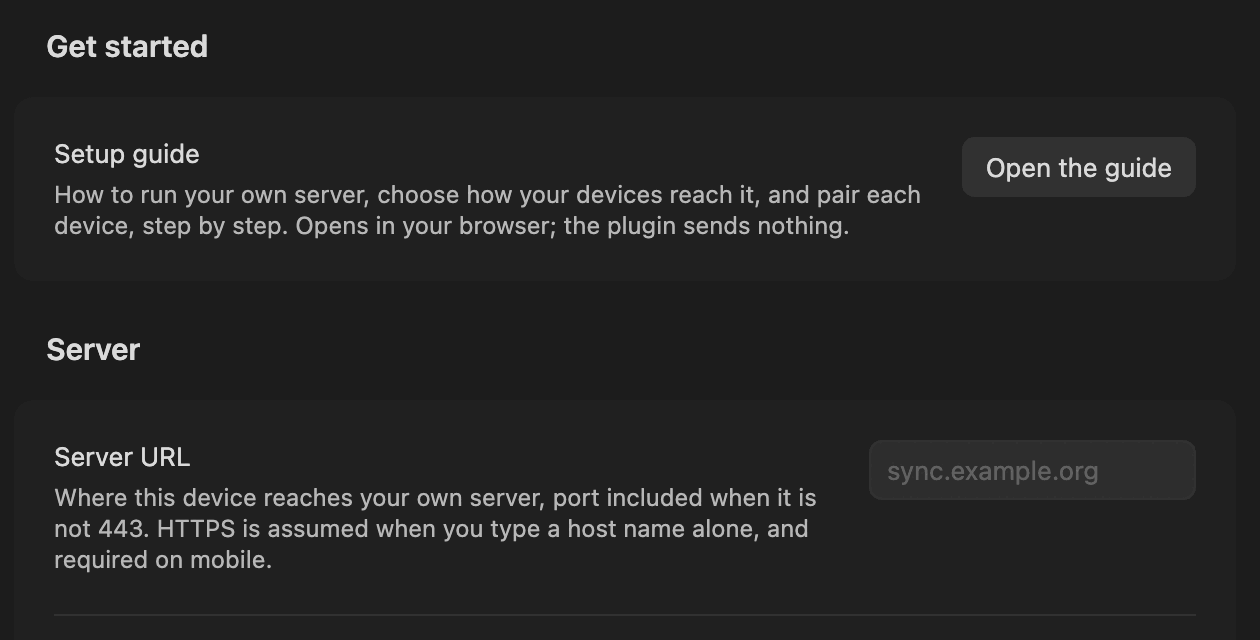
- In Obsidian, Settings → Self Hosted Private Sync → Setup guide opens this page.