Install the plugin
For people using obsync.
Self Hosted Private Sync installs and updates through Obsidian's Community plugins browser, on desktop and on mobile, like every other Obsidian plugin. The sync server never installs code on your device, and copying plugin files by hand is not the way to install it.
The plugin id is obsync-private-sync; the name you search for is
Self Hosted Private Sync. A build from before the directory listing, with a
different id, is a separate installation. The plugin does not read or import
another installation's settings. Keep that installation's recovery phrase
before removing it, then choose the new installation's folders and pair it in
Self Hosted Private Sync settings.
Install and connect
You need Obsidian 1.13.0 or newer. Signing in to Obsidian does not connect a device to your server: pair each device once, and sync then runs by itself.
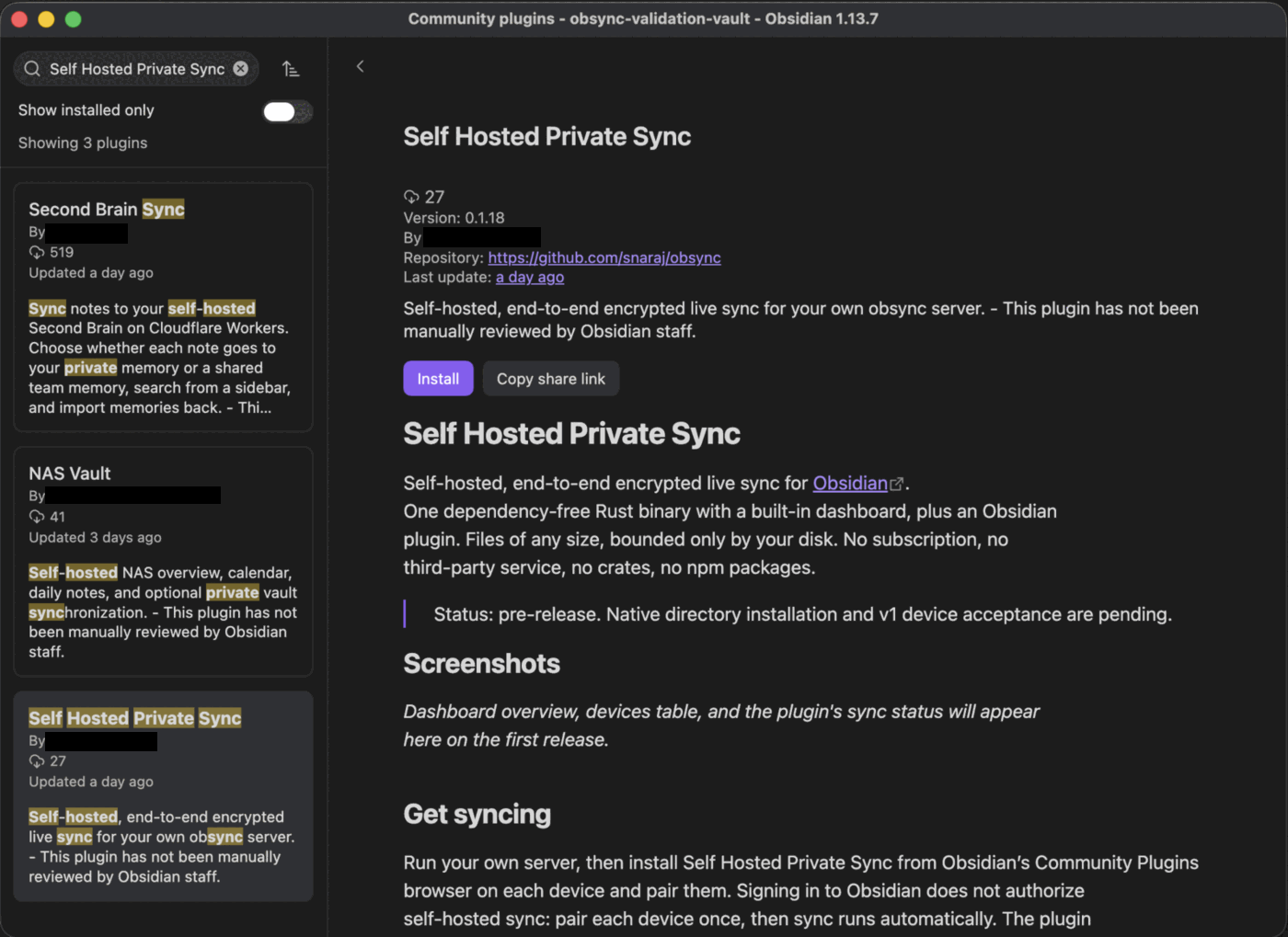
- Open the vault to sync. In Settings → Community plugins, allow community plugins, select Browse, search for Self Hosted Private Sync, then Install and Enable.
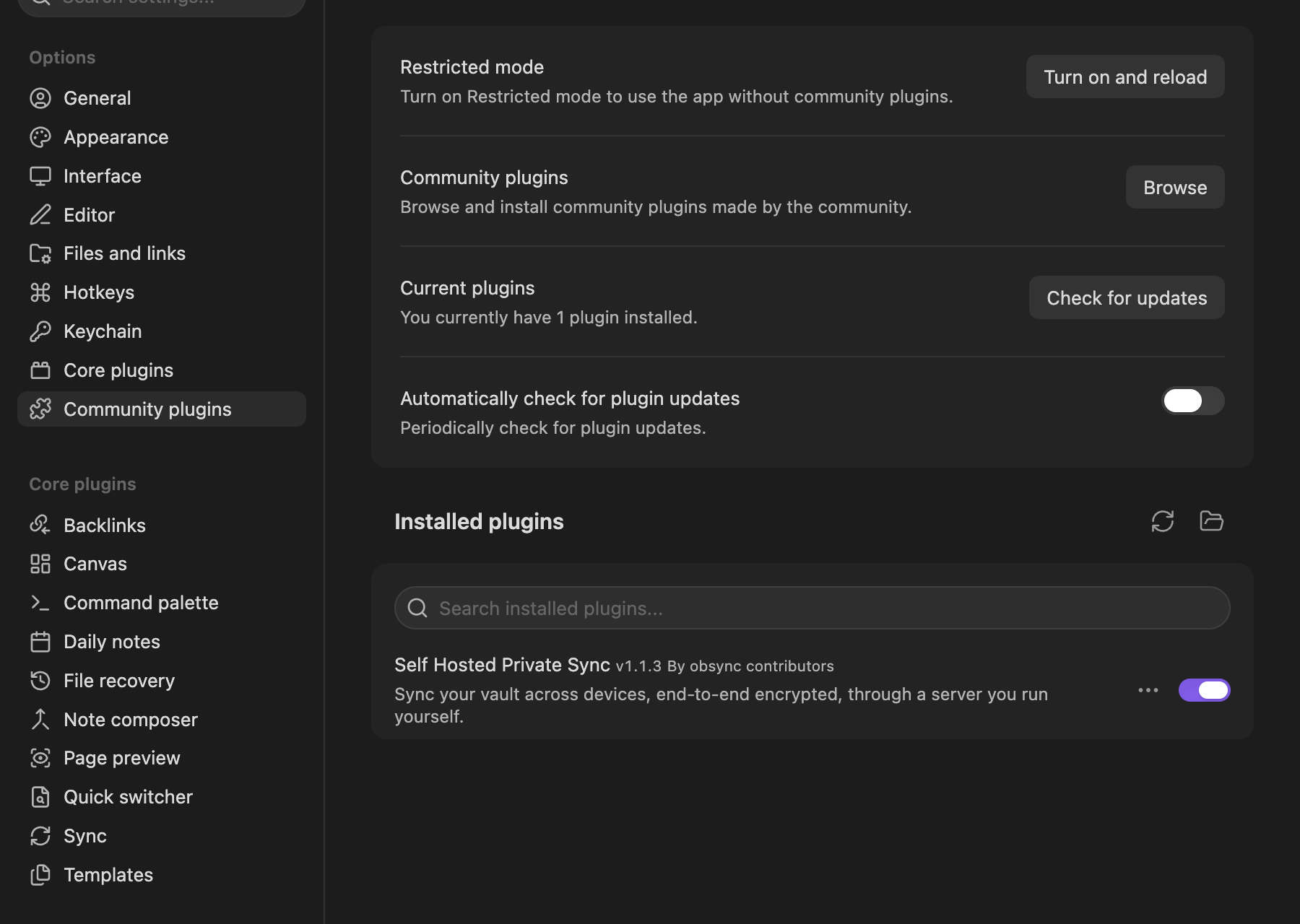
Once it is enabled, it is listed under Installed plugins:
On Android, Obsidian first asks for file access and to leave Restricted mode; Prepare an Android phone shows each screen.
- Open Self Hosted Private Sync settings and enter the HTTPS address of your server. The device must already trust the server's certificate (how). If the server is only on a private network or a VPN, connect to it first.
- Choose and save the folders this device should sync before setup or pairing. For a workspace vault, select only the note folders you mean to share. Each device keeps its own folder selection.
- On the first device, use Setup or recover with the server's setup token and keep the recovery phrase safe. On every other device, enter the pairing code from Pair a new device on a device that already syncs, then approve the new device there. The Quickstart shows each step.
Update
Use Settings → Community plugins → Check for updates on each device.
Obsidian downloads the release's main.js, manifest.json and styles.css
from GitHub. The plugin never fetches or runs code from the sync server, never
installs a loader and never updates itself. When your server reports a newer
plugin version, the plugin's notice opens Obsidian's own plugin manager.
Where your keys are kept
The plugin keeps the vault key, this device's secret and any edge header values in Obsidian's secret storage, never in plain plugin data. That storage belongs to the vault and is shared with the other plugins you trust there; it is not a separate lock against them or against your operating system. How the entry is written, migrated and recovered is in credential custody, and Obsidian's own storage guide describes the storage itself.
On Linux, that storage is only as strong as your desktop's keyring, such as GNOME Keyring or KWallet. Without one, as on a minimal window manager or in a container, Obsidian still accepts the keys and keeps them unencrypted (seen with Obsidian 1.13.7), protected only by your home folder's permissions. Nothing warns you at setup; from its next start Obsidian shows a notice that secrets are stored without encryption. Obsidian does not tell plugins which storage it uses, so obsync cannot warn you itself: On Linux, the keys may not be in a keyring says what to do.
If secret storage is unavailable or cannot be verified, sync stops with an error, and nothing is sent or changed. Then:
- Reload Obsidian.
- If it keeps happening, have your recovery phrase or another syncing device at hand, reinstall obsync, and pair this device again. Your notes stay in the vault. Do not repeat server setup.
A copied vault, or one whose folder was renamed outside Obsidian, is not an error: it opens unpaired, says so, and offers Pair this device and Start fresh (what to do).
A pairing waiting for approval finishes even if its dialog was closed, and after Obsidian restarts, as long as it is approved within the code's ten minutes; after that, pair again with a new code. The recovery phrase cannot approve a pending device. Other plugin installations are never imported automatically.
Trust and network use
The plugin talks to your own server for setup, pairing, encrypted sync, history, device management and version information. It has no subscription, advertising or telemetry service. Obsidian itself contacts its directory and GitHub to install and update community plugins. Any network access provider in front of your server is chosen by whoever runs the server.
Four more things the plugin touches, each only when you act:
- Your edge, only if you configured one. Headers you paste under Custom request headers ride on every request to the Server URL, because the proxy that needs them is on the path to your server.
- Your browser, when you ask for the dashboard. Open dashboard opens a sign-in link in your browser, and only when that link is on your server's own address.
- Your browser, when you ask for the setup guide. Setup guide in the settings and the command Open the setup guide open the project's guide, a fixed address shipped with the plugin. The plugin itself sends nothing there.
- Obsidian's secret storage. The vault key, the device secret and any edge header values live there, never in plain plugin data.
Installing any community plugin means trusting its code with your vault. Obsidian installs this one from the project's GitHub releases; how those files are built, signed and attested, and what Obsidian does and does not check before running them, is in the release path.
For a phone, the server needs HTTPS with a certificate the phone trusts. A
publicly trusted certificate can cover a server that is only reachable
privately: trusting a certificate and reaching a server are separate choices.
A private certificate authority, as deploy/compose makes, works too, with a
one-time trust step on each device. Never bypass a certificate error.